Dynamics 365 Finance and Operations SharePoint Integration Guide
Hello! I’m Ivan Farafonov from Hire Dynamics Developers, where I blend my skills as a Content Creator and Project Manager. My world revolves around Dynamics 365, CRM, and ERP systems. I love breaking down these topics into friendly, easy-to-understand content. It’s all about connecting with our clients and readers, helping them navigate Dynamics technologies with ease. I’m here to share insights and keep you updated on the latest in Dynamics.
SharePoint Integration with Dynamics 365 Finance and Operations: Full Guide
No post found or not on a single post page.
SharePoint and Dynamics 365 Finance and Operations (MD365 F&O) are powerful tools that, when integrated, can significantly enhance your document management and operational efficiency. It will be a useful tool for any type and size of business due to simplicity and numerous benefits.
Integration requires pre-paid product licenses for Sharepoint and Microsoft Dynamics 365 Finance and Operations. Integration process is very simple and does not require any special knowledge. It can be achieved easily with the help of steps below. This guide walks you through the essential steps to set up SharePoint for use with Microsoft Dynamics 365 Finance and Operations, including configuring document management, setting up print management for customer statements, and attaching documents to sales orders.
Setting Up SharePoint for D365 Finance and Operations
These are simple steps to set up the SharePoint and prepare MD365 F&O environment for integration. This process is very easy and does nor require any additional expertise or help from the technical department.
Step 1 - Create a New SharePoint Site
First, you’ll need to establish a new SharePoint site to serve as the repository for your Dynamics 365 Finance and Operations documents. Here’s how:
1.1 Navigate to SharePoint Online
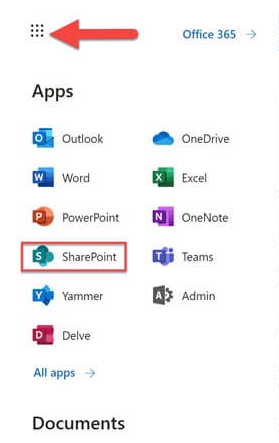
Dynamics 365 Finance and Operations Sharepoint integration step 1.1
1.2 Click “Create a site” and select needed type of site
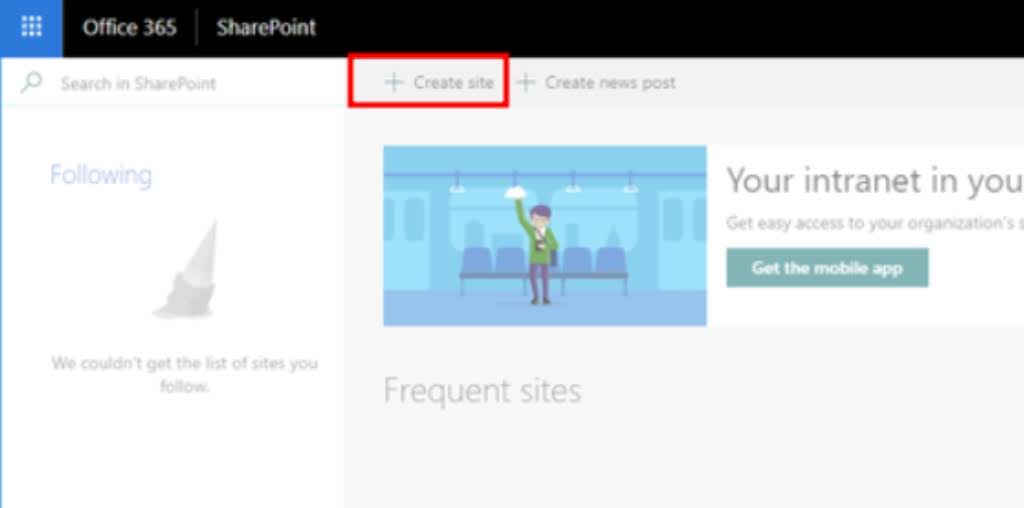
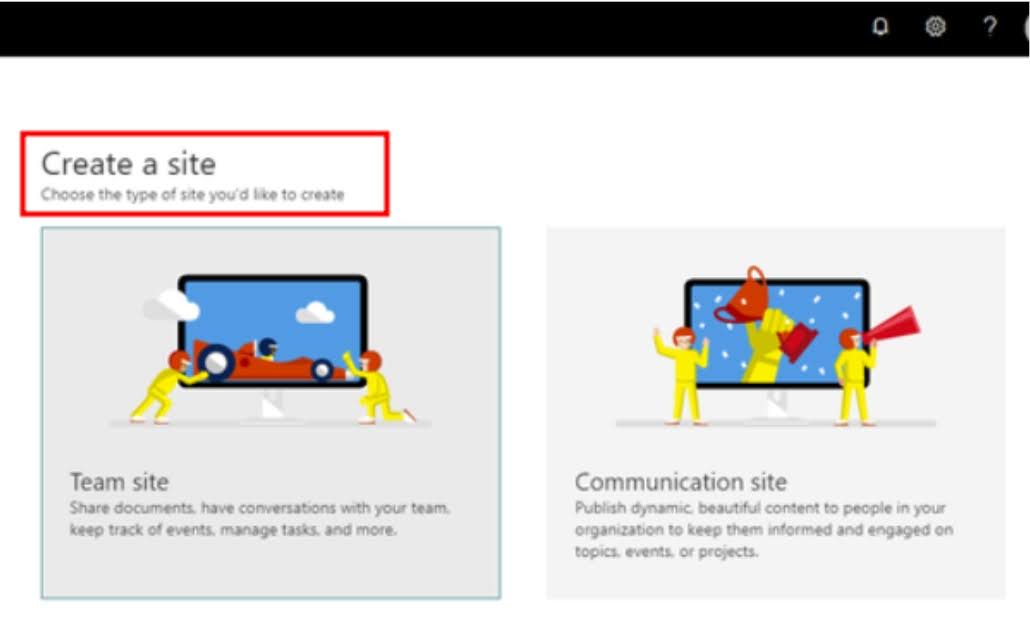
Step 1.2
1.3 Fulfill required fields
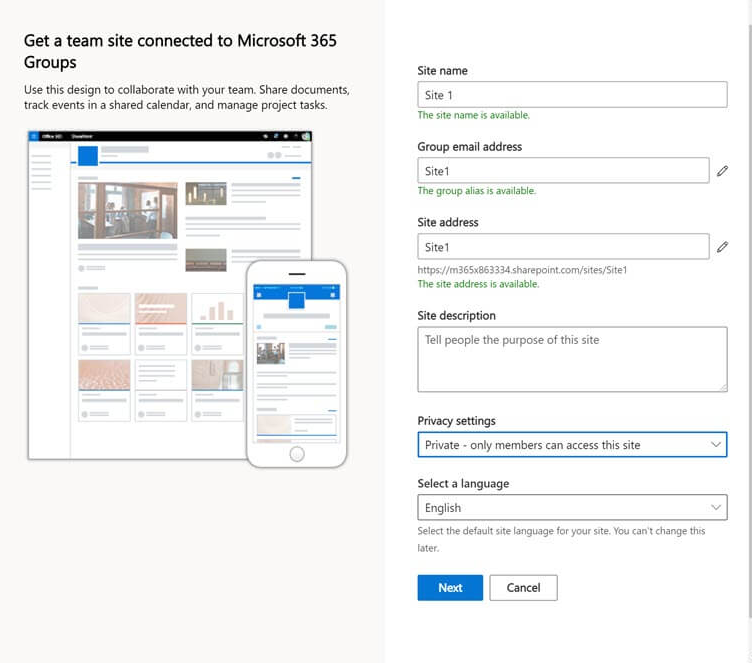
Step 1.3
1.4 Create a new library that will serve as a folder for future files
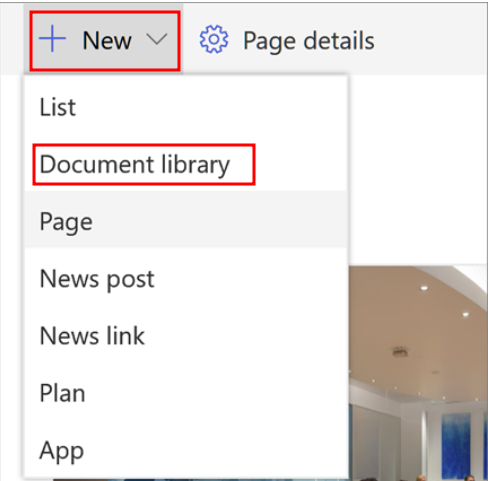
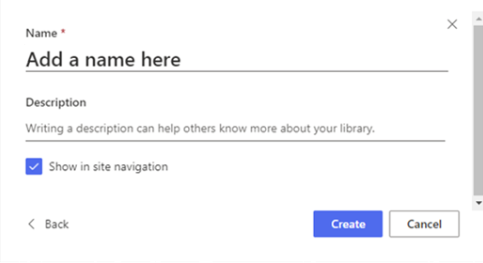
Step 1.4
Step 2 - Configure SharePoint in D365 Finance and Operations
The next steps are required to create a safe connection between MD365F&O database and SharePoint storage. This might need additional administrator help in case of insufficient permissions.
2.1 Linking SharePoint with D365 F&O
Go to Organization administration > Document management > Document management parameters in D365 F&O.
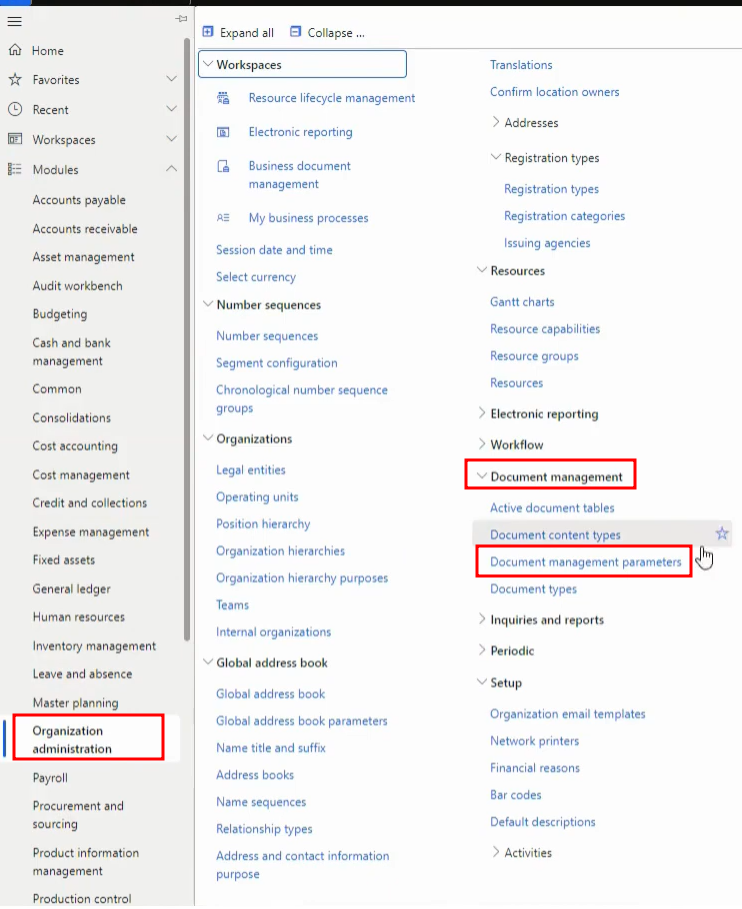
Dynamics 365 Finance and Operations Sharepoint integration step 2.1
2.2 Select the SharePoint option from the left-hand menu
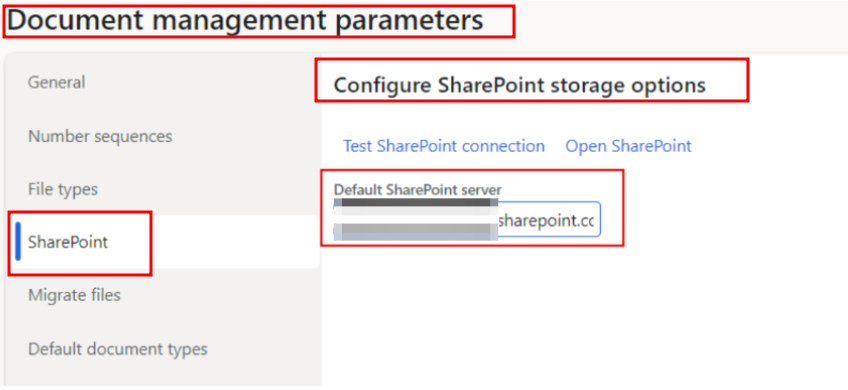
Step 2.2
2.3 Enter your organization’s SharePoint server name
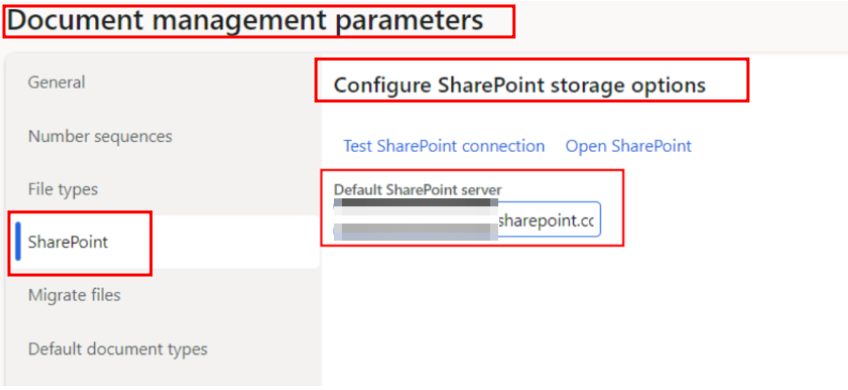
Step 2.2
Additionally, if you encounter an access error, ensure you have the appropriate permissions. Contact your SharePoint administrator if needed.
Step 3 - Set Up Document Types
With the help of next steps we will create file type that is required in further steps for sending documents to SharePoint base.
3.1 Configure document types
Navigate to Organization administration > Document management > Document types.
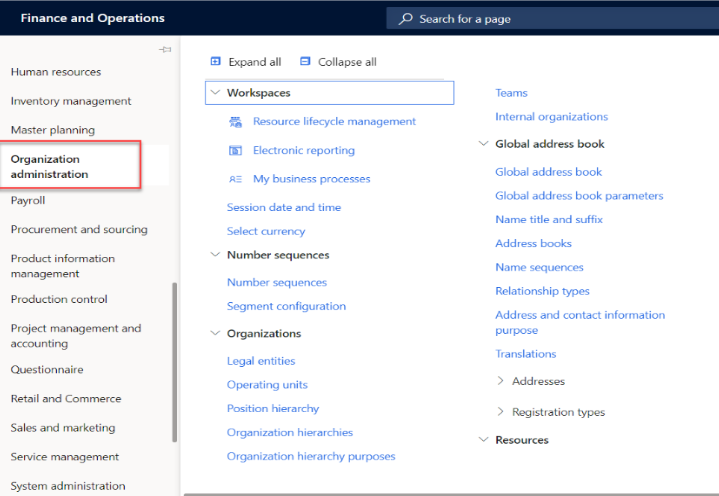
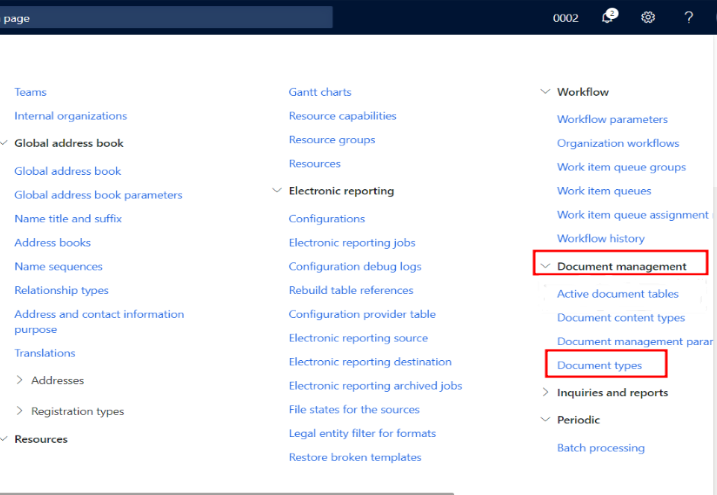
Dynamics 365 Finance and Operations Sharepoint integration step 3.1
3.2 Select File from the list, then click New to create a new document type
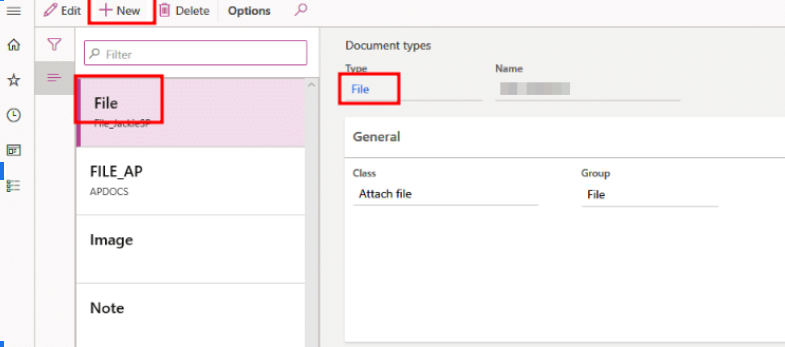
Step 3.2
3.3 Fill in the Name field and specify the SharePoint address where documents of this type should be stored.
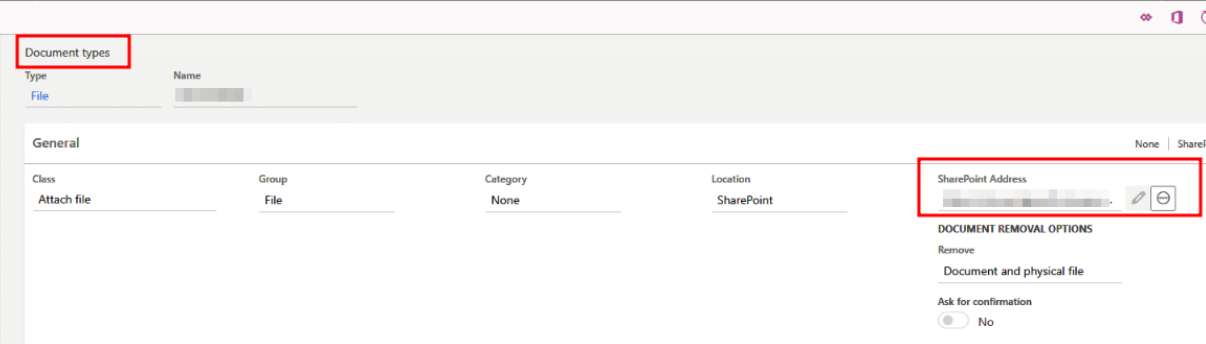
Step 3.3
Step 4 - Ensure Document Handling is Enabled
Document handling feature is required to attach documents that will be added to SharePoint, to records. This will enable us to attach our documents to different operations in the system to keep a good synchronization.
Document handling enabling:
4.1 Click the gear icon in your D365 F&O session and select User options

Dynamics 365 Finance and Operations Sharepoint integration step 4.1
4.2 Go to Preferences and ensure that Document Handling is set to “Yes”
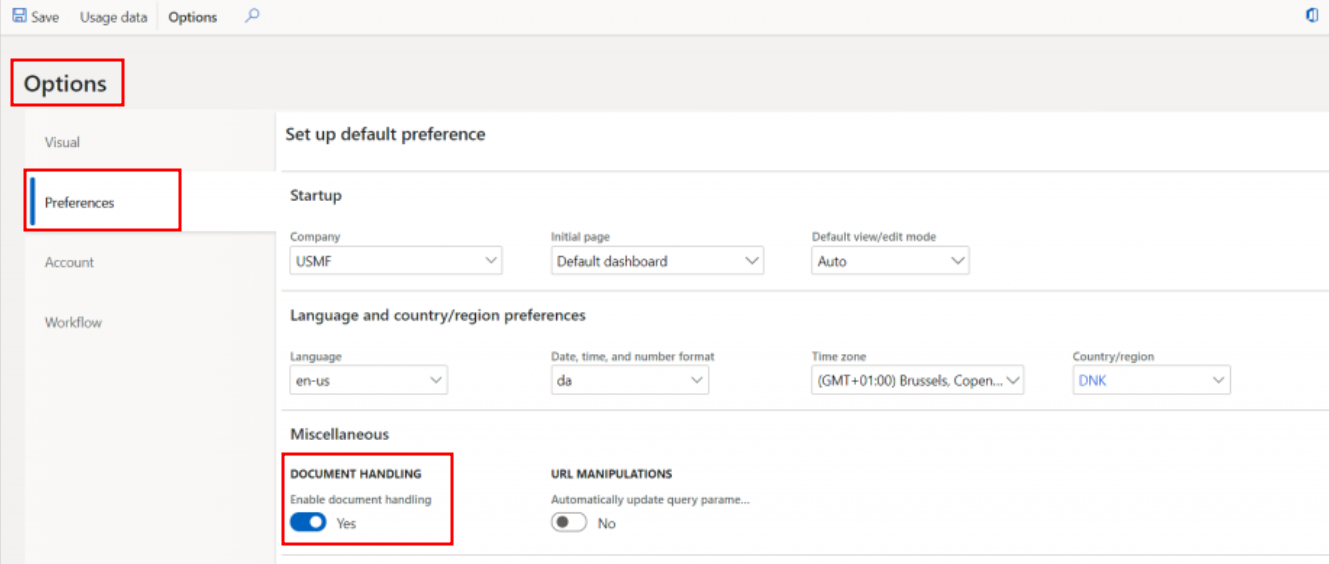
Step 4.2
Configuring Print Management for Customer Statements
We need to set up Print management to be able to send documents, attached to System statements like Sales orders or purchase orders, to Sharepoint storage. Print management might be useful for Sales and Purchase operations to share files to SharePoint. Let’s see the example of Customer statements.
Step 5 - Access Print Management Setup
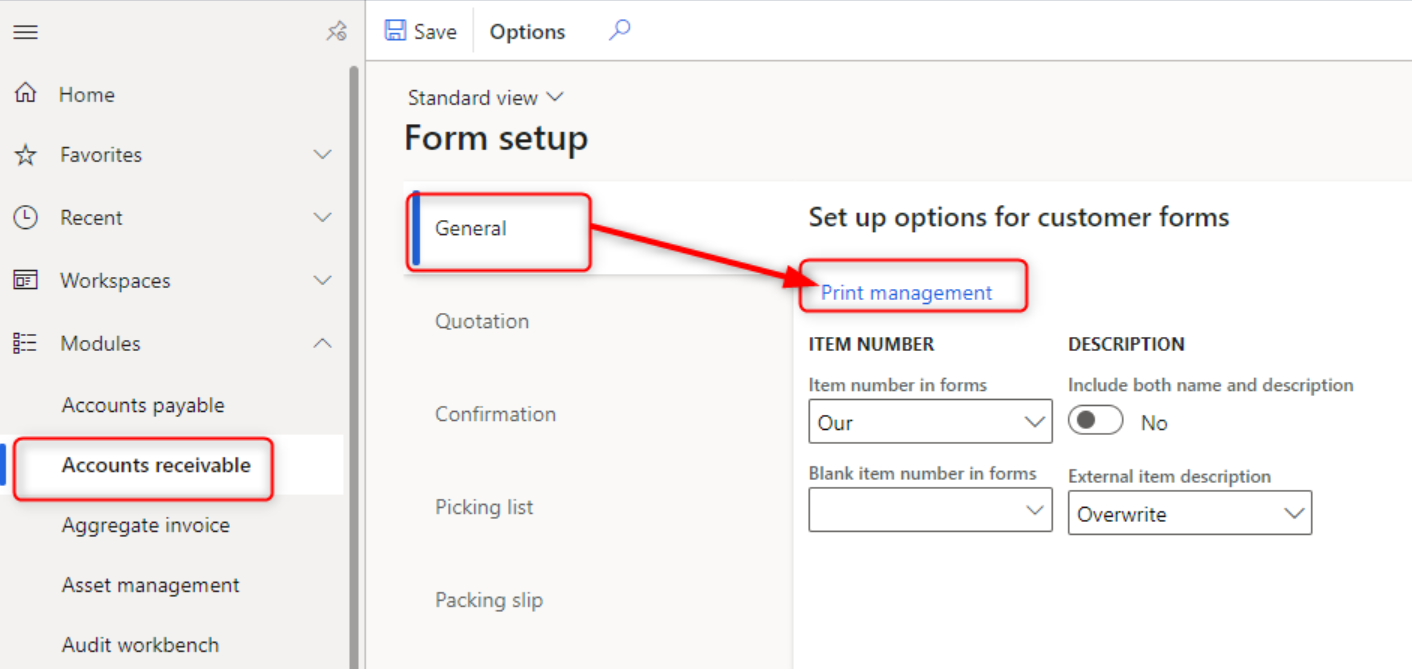
Navigate to Account receivables > Setup > Form setup and click on the Print Management link.
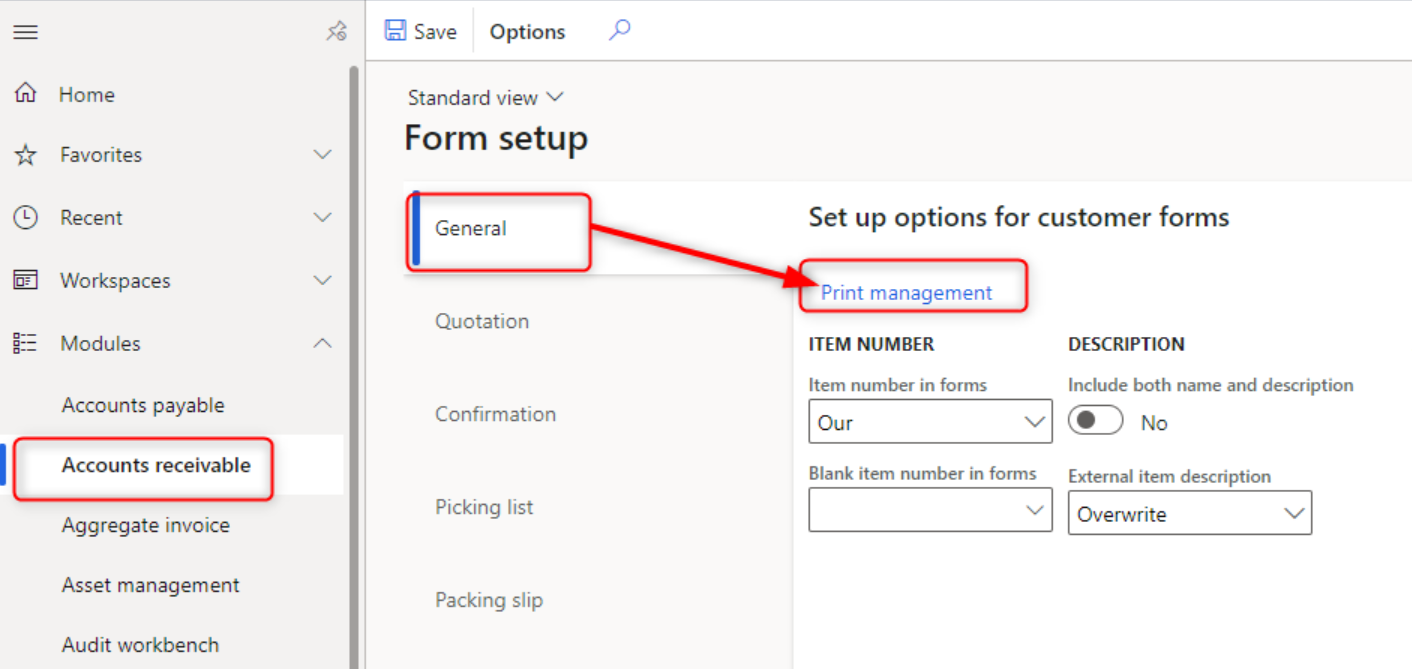
Dynamics 365 Finance and Operations Sharepoint integration step 5
Step 6 - Configure Print Management
6.1 Select Customer account statement and choose Original (or create a new setup if necessary)
Dynamics 365 Finance and Operations Sharepoint integration step 6.1
6.2 In the Destination field, select Printer Setup
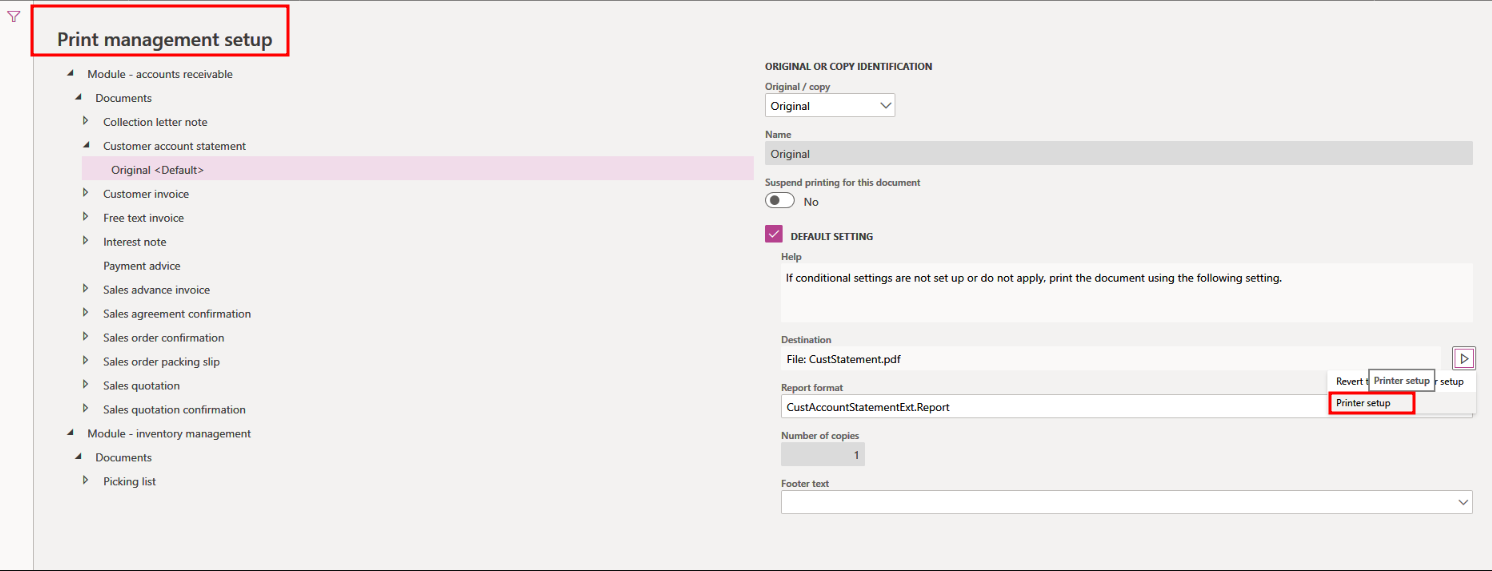
Step 6.2
Step 7 - Set up File Destination
In the Printer Setup dialog, select File on the left
Set “Save” in the print archive to “Yes”, assign a name, and choose PDF as the format.
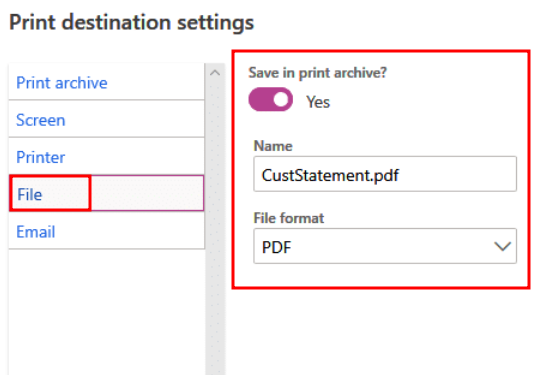
Dynamics 365 Finance and Operations Sharepoint integration step 7
Important! It is required to ensure Save in print archive is enabled to ensure documents are created in SharePoint.
Step 8 - Test the Setup
Don`t forget to test your integration to avoid waste of money and time during the real usage on production level, cause lost documents = lost money and time!
8.1 Generate a customer statement for a sample customer (e.g., Contoso).
8.2 After the statement is created, verify that the PDF file appears in your SharePoint library.
Attaching Documents to Sales Orders
Documents can be attached to different operations like for example Sales order. To attach a document to a sales order header and store it in SharePoint.
Open the Sales Order
Navigate to a Sales Order header and click on the paperclip icon in the top right.
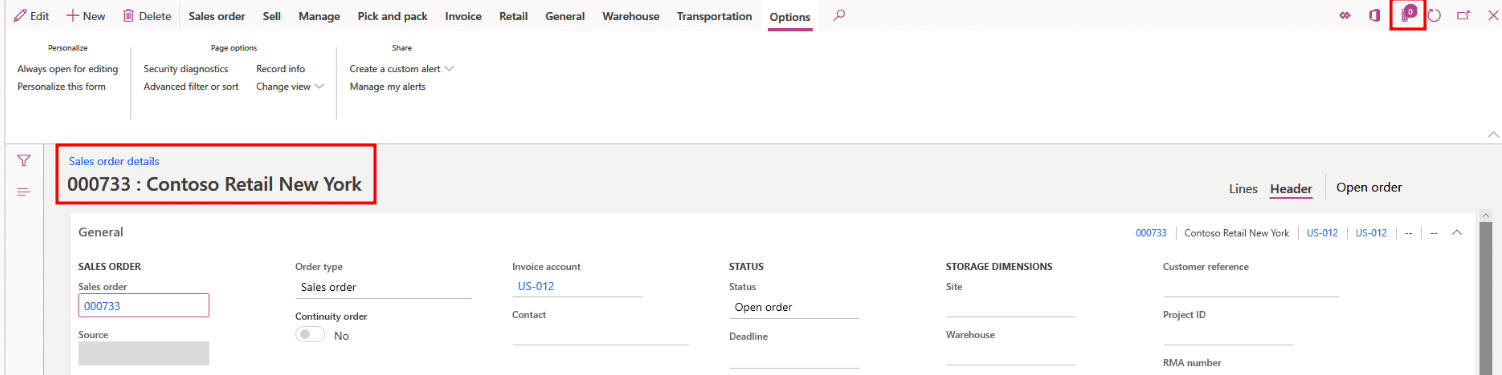
Dynamics 365 Finance and Operations Sharepoint integration - Sales Orders Options
Attach a Document
Click New, then select File from the dropdown menu.
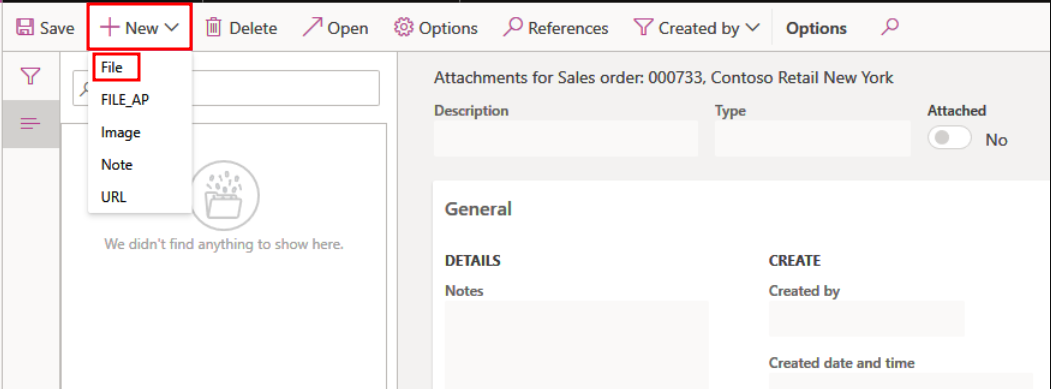
Dynamics 365 Finance and Operations Sharepoint integration - Sales Orders Options
Choose the document you wish to attach and click Save and close.
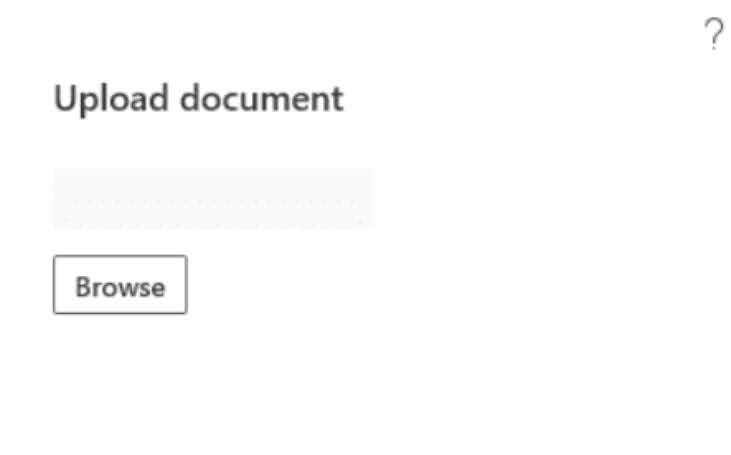
Dynamics 365 Finance and Operations Sharepoint integration - Sales Orders Upload
TIP: The paperclip icon will show the number of attached documents. The newly attached document will be visible in your SharePoint document library.
Best Practices in Advanced Configuration
Document Types Configuration
Document types help categorize and store attachments in specific locations. Configure these by defining types such as SharePoint and specifying their storage locations.
SharePoint Storage Configuration
Ensure that SharePoint storage is enabled and properly configured in your D365 F&O settings.
Test the connection to verify that your setup is working correctly.
File Type Configuration
Modify the list of allowed file types in Document management parameters to control what users can attach to records.
Document Preview and Other Settings
Configure document preview settings if needed, and consider enabling options like “Open attachments” in the new window to enhance usability.
Conclusion
Integration does not require any further maintenance and can be easily reintegrated in case of need with the help of steps from this article. Numerous business benefits can be gathered through Integration of Microsoft Dynamics 365 Finance and Operations with SharePoint.
Let’s highlight the most valuable of them:
- Security and Compliance Enhancements
It can be achieved through granular access control, allowing you to manage who can view or edit documents. Both MD365 F&O and SharePoint offer audit trails and logs, which help in tracking user activities and ensuring compliance with regulatory requirements.
- Better Data Insights
By integrating MD365 F&O with SharePoint, you can create comprehensive reports and dashboards that combine data from both systems, providing better insights and facilitating data-driven decision-making. SharePoint’s advanced search capabilities allow users to quickly locate documents and information stored across both MD365FO and SharePoint.
- Enhanced Document Management
SharePoint provides a robust document management system where all related documents can be stored and accessed in one place. This helps in organizing and securing business-critical documents. SharePoint’s version control feature allows you to track changes and maintain historical records of documents, which is essential for compliance and audit trails.
- Improved Collaboration
Teams can collaborate more effectively by using SharePoint’s collaboration features, such as shared document libraries, real-time co-authoring, and discussion boards.
- Improved User Experience
Users can benefit from a seamless login experience with Single Sign-On (SSO) across both systems, reducing login fatigue and improving user satisfaction
Integrating SharePoint with Dynamics 365 Finance and Operations can streamline your document management processes and improve overall efficiency. By following steps in this article, you’ll be right on your way to an integration that leverages the strengths of both platforms.

By Ruslan Kucherenko
Ruslan is a creative Content Writer and experienced Project Manager, who turns into a geek, when it comes to the questions relevant to CRMs and ERPs. He keeps an eye on the latest researches relevant to the topics of systems integration and optimizing business processes in large companies and corporations.

[Hire Microsoft Dynamics CRM Developer](https://www.hiredynamicsdevelopers.com/hire-microsoft-dynamics-crm-developer/ "Hire Microsoft Dynamics CRM Developer")

[Hire Microsoft Dynamics CRM Consultant](https://www.hiredynamicsdevelopers.com/hire-microsoft-dynamics-crm-consultant/ "Hire Microsoft Dynamics CRM Consultant")

Ruslan P.
Microsoft Power Platform Developer
 10 HOURS / WEEK

Alexey P.
Dynamics CRM Developer
 10 HOURS / WEEK

Serhii S.
Dynamics ERP Consultant
 20 HOURS / WEEK
Outline
- [Setting Up SharePoint for D365 Finance and Operations](https://www.hiredynamicsdevelopers.com/blog/dynamics-finance-operations-sharepoint-integration/#Setting_Up_SharePoint_for_D365_Finance_and_Operations "Setting Up SharePoint for D365 Finance and Operations")
- [Configuring Print Management for Customer Statements](https://www.hiredynamicsdevelopers.com/blog/dynamics-finance-operations-sharepoint-integration/#Configuring_Print_Management_for_Customer_Statements "Configuring Print Management for Customer Statements")
- [Attaching Documents to Sales Orders](https://www.hiredynamicsdevelopers.com/blog/dynamics-finance-operations-sharepoint-integration/#Attaching_Documents_to_Sales_Orders "Attaching Documents to Sales Orders")
- [Best Practices in Advanced Configuration](https://www.hiredynamicsdevelopers.com/blog/dynamics-finance-operations-sharepoint-integration/#Best_Practices_in_Advanced_Configuration "Best Practices in Advanced Configuration")
- [Conclusion](https://www.hiredynamicsdevelopers.com/blog/dynamics-finance-operations-sharepoint-integration/#Conclusion "Conclusion")
- [Get up and running your business with Dynamics 365 Finance and Operations SharePoint Integration](https://www.hiredynamicsdevelopers.com/blog/dynamics-finance-operations-sharepoint-integration/#Get_up_and_running_your_business_with_Dynamics_365_Finance_and_Operations_SharePoint_Integration "Get up and running your business with Dynamics 365 Finance and Operations SharePoint Integration")
Request Our Services
Get up and running your business with Dynamics 365 Finance and Operations SharePoint Integration
Your Partner Recognized in Dynamics Community








The post Dynamics 365 Finance and Operations SharePoint Integration Guide first appeared on Hire Dynamics Developers.


